Solves 360 panoramic footage natively!
Accelerates solving for you longest shots.
Draw and animate masks directly in Blender. Name, hide, invert, and manage them without leaving the shot.
Windows, macOS, and now Linux. Just download the version for your system.
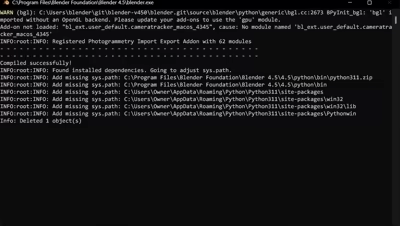
No more of that illegible terminal nonsense. See every step in a simplified preview.
Export your solve into another tool or export distort/undistort STMaps for compositing.
Also: accurate x2 mode, scale operator, sub-sequence tracking, enhanced point tool, new (faster) roto module, frame skipping, ground auto-alignment, MacOS metal acceleration, and bug fixes
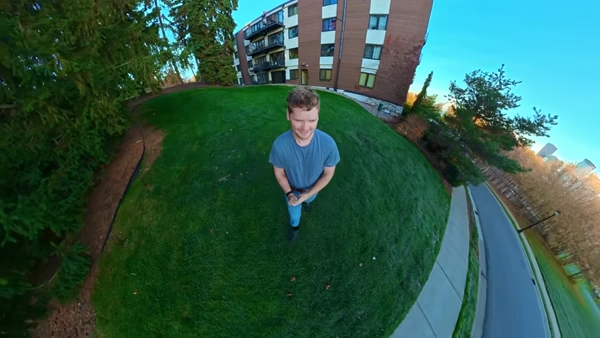
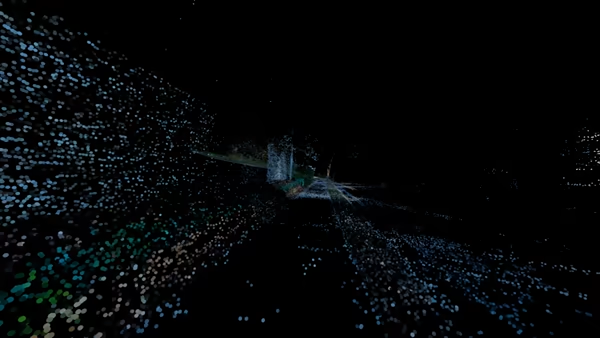
Got an equirectangular shot? Camera Tracker 7 can now track it... natively! Use for tracking 360 shots or as a make-shift 'lidar scanner'.
The longer the shot, the longer the solve. At least that used to be the case. Turn on Turbo for major savings at near identical quality. Can often be 4x faster (or even more). Note that Turbo has a different meaning on Mac systems (accelerates other processes).
Previously, what frustrated me the most, was needing a second program to handle masking. Well no longer. A mask editor. Right inside Camera Tracker 7. Victory tastes sweet.
Load your footage, hit track, and you're done. Camera Tracker 7 handles everything automatically.
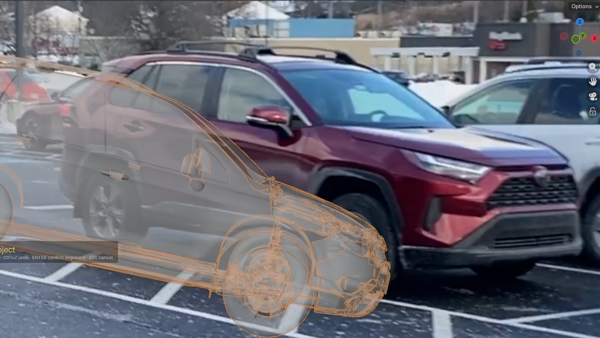
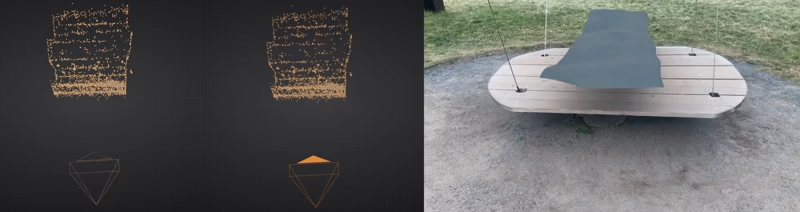
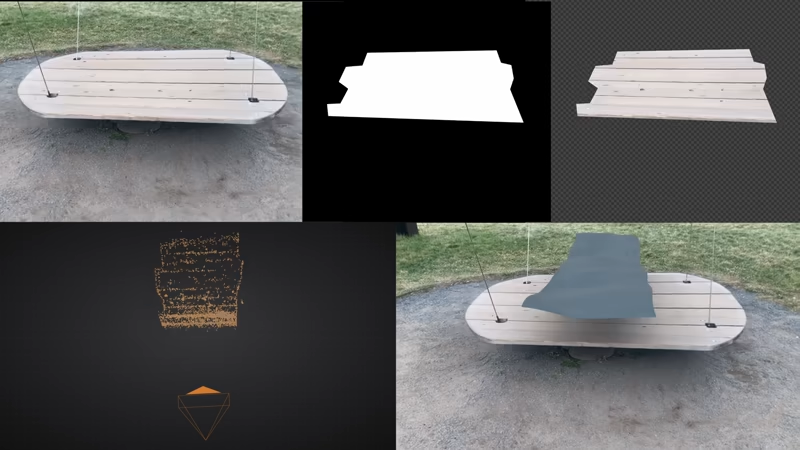
Camera Tracker 7 includes the Align Tool. Align 3D objects to your shot from just 2 views. Great for custom models or photogrammetric scans.
Want to define your own points? Camera Tracker 7's Point Tool can triangulate any 3D point in just 2 clicks. You can optionally even get 3+ samples per point for precision.
No more eye-balling where the ground plane is. Good CG integration requires exactness. Camera Tracker 7 comes with a Ground Tool that will find the floor from a vertex selection. In fact, when importing the solve. Camera Tracker 7 tries an auto-ground alignment.
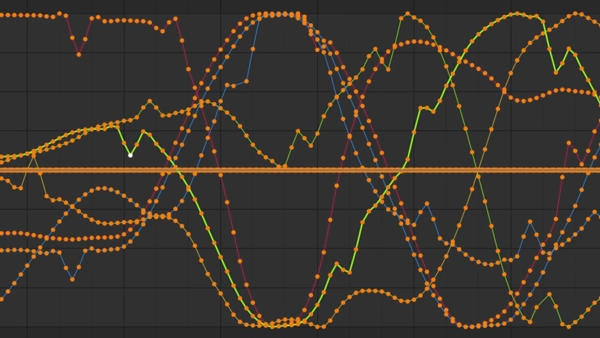
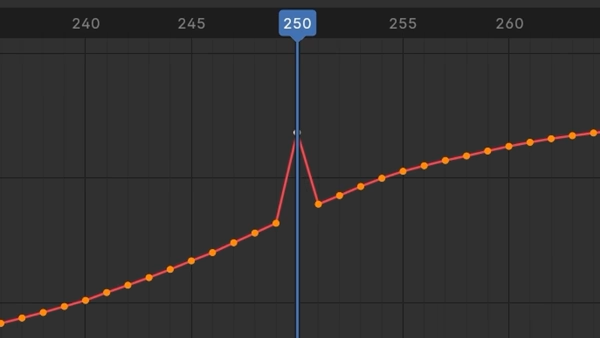
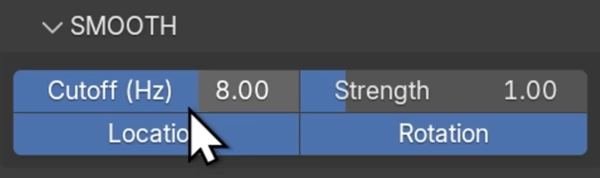
Sometimes the solve is 99% correct except for a few discontinuities. Camera Tracker 7 includes Camera Smoothing to remove high-frequency noise.
Ever get that perfect solve with 1 glitchy frame? One click. One defunk. Problem solved.
Zooming. An absolutely essential feature missing in Blender's default tracker. I fixed that in Camera Tracker 7. Just enable the zoom toggle and you're good to go - it even works in tripod mode.
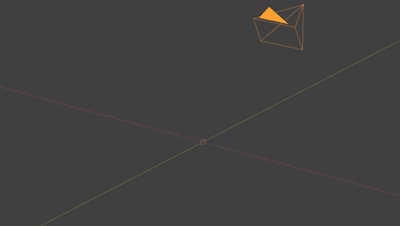
Camera Tracker 7 handles pan and tilt shots without camera travel. Enable Zoom if the focal length changes during the shot, too!
Camera Tracker 7 remains remarkably stable for longer shots. Typically you'd expect drift accumulation or no solve at all at a few hundred frames - the shot below is ≈1200 frames! Of course the longer the shot is, the more time it takes to solve (turn on Turbo to fix that) - but it just keeps chugging.
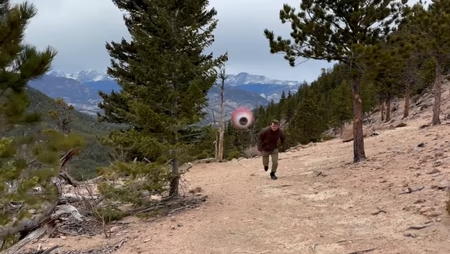
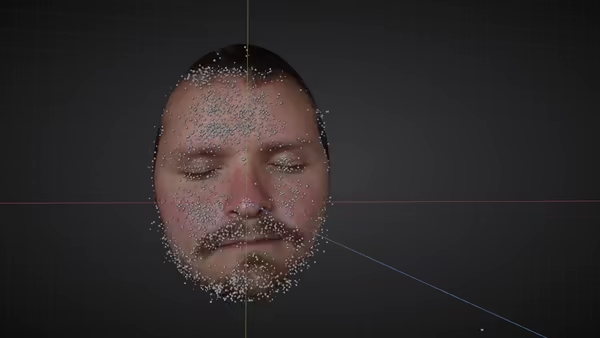
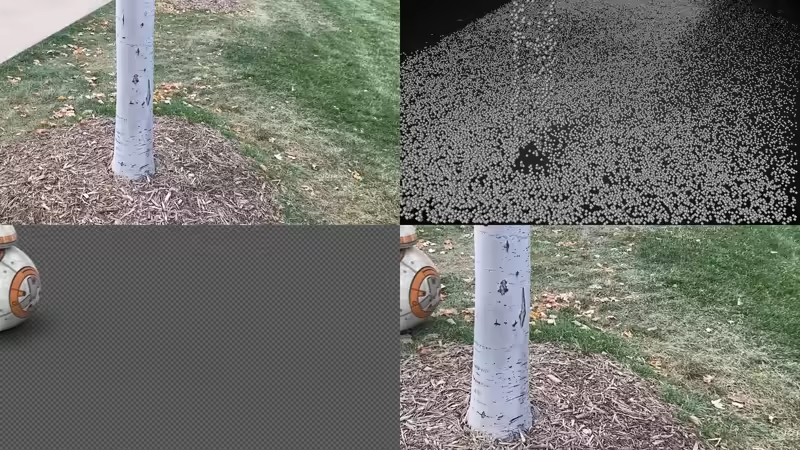
One way to look at object tracking is as inverse camera tracking. And since Camera Tracker 7 is... well, a camera tracker, we can:
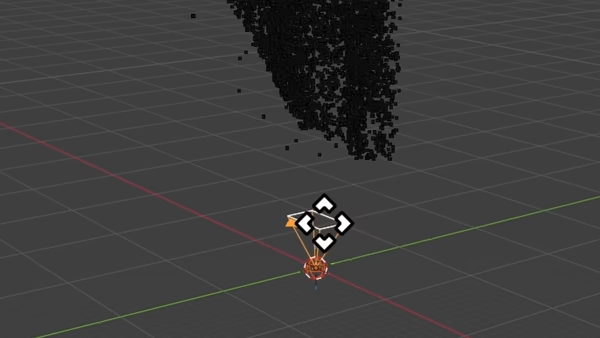
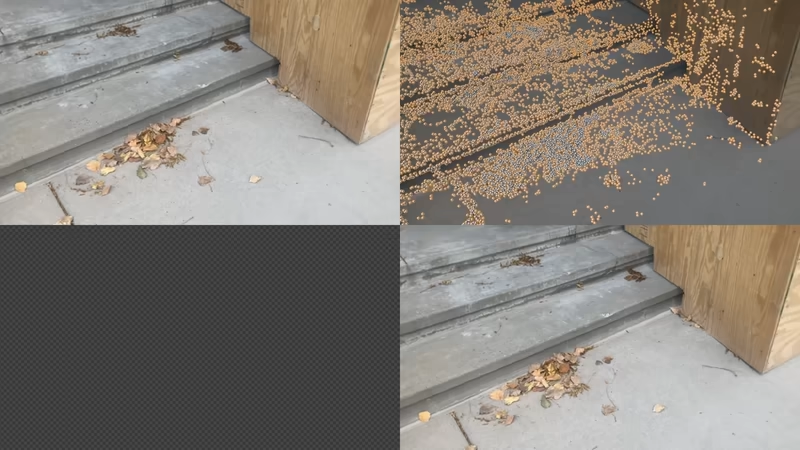
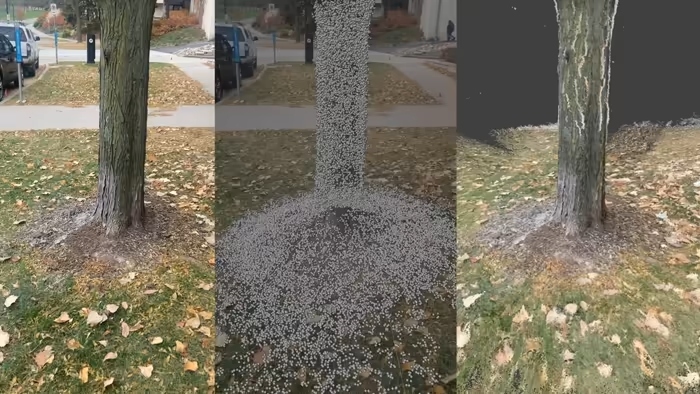
For proper CG integration you need to know what your scene looks like (and presumably recreate it). Camera Tracker 7 can generate colored dense point clouds from Normal and 360 solves. Use the reconstruction to place your geometry, line up a set, or see just how much of the scene you captured.
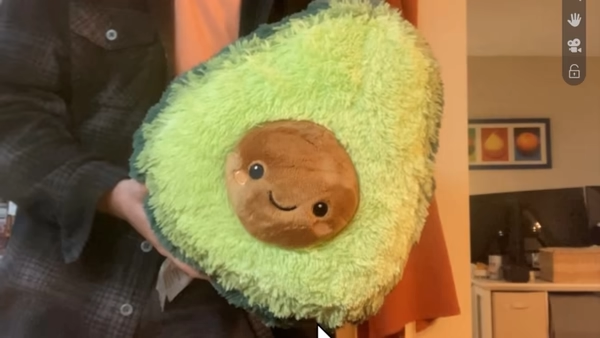
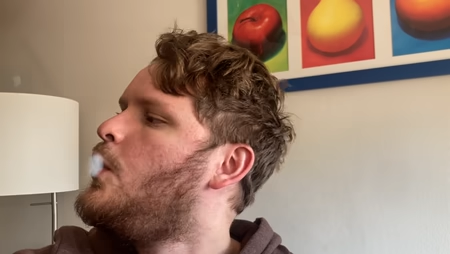
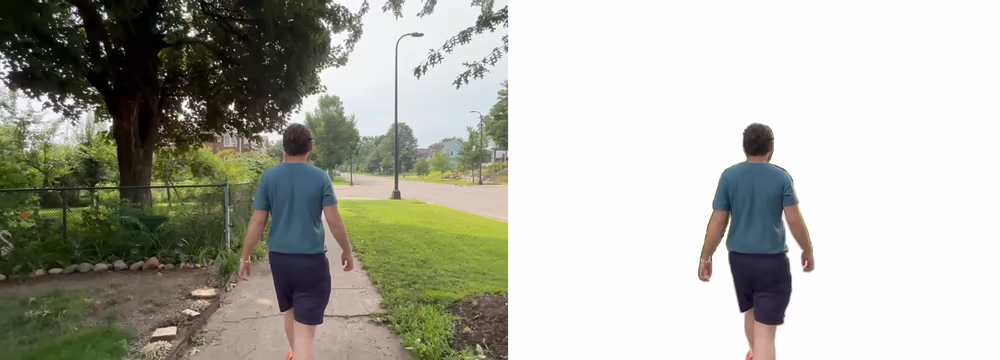
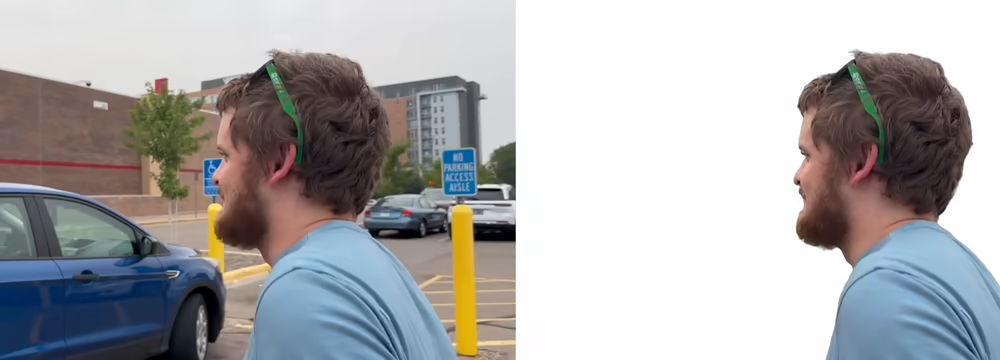
One of the most common reasons for a failed solve is not masking out moving objects. 90% of the time this moving object is the foreground actor. Camera Tracker 7 can automatically detect and mask out any foreground actor (and sometimes a bit extra, if you ask nicely).
Have a compatible GPU? Put it to work.
On Windows and Linux, enable CUDA to use a compatible NVIDIA GPU. Turbo can accelerate Normal and 360 solving, and enabling it also turns on CUDA. On Apple Silicon, Turbo accelerates supported Tripod and Densify work. No NVIDIA GPU? CPU tracking is still available.
Speed depends on your hardware, footage, and settings.
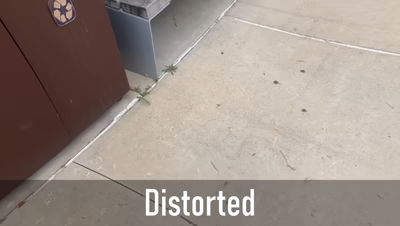
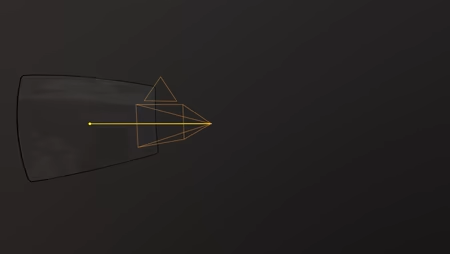
Undistortion is a key component for a more accurate solve and ultimately... for compositing. Camera Tracker 7 accounts for lens distortion and can undistort perspective footage. Export distortion and undistortion STMaps for compositing, with k1 and k2 available in Statistics when relevant.
Masks are useful in two important ways:
Enable Alpha to use your image sequence's alpha channel, Mask for drawn masks, or Roto for automatic actor masks. Invert the mask when you want to keep the moving object instead of the background.
Learn everything there is to know about CameraTracker 7. See the documentation for even more info.