Back to documentation
Track & Edit
TRACK & EDIT contains the main TRACK button, its reset menu, and the editing tools.
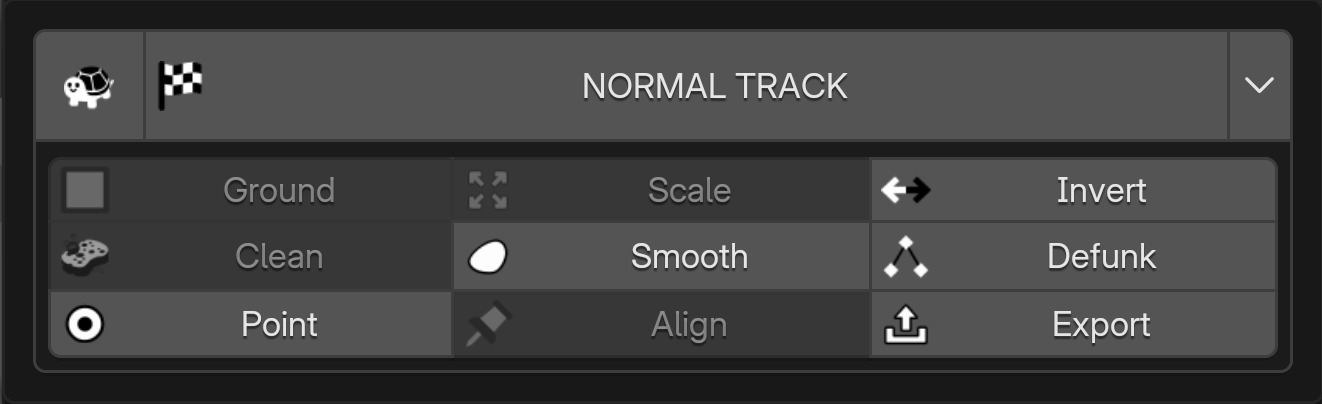 Track & Edit tools.
- TRACK: run the selected Normal, Tripod or 360 tracker. After a solve, the main button becomes Reset.
- Ground: align selected points with the ground.
- Scale: set the reconstruction's scale using two selected points and a known distance.
- Invert: freeze the camera and apply the inverse motion to the reconstruction.
- Clean: remove outliers from the selected sparse or dense point cloud.
- Smooth: smooth the solved camera motion.
- Defunk: replace the current camera frame using the nearest pose keys on either side. Turn Smooth off first. Use this for an isolated bad frame.
- Point: triangulate a point by picking the same feature across frames. In 360 mode, pick on the flat panorama.
- Align: position an object by matching features in the footage.
- Export: open COLMAP, STMaps or the tracking Log.
Reset menu
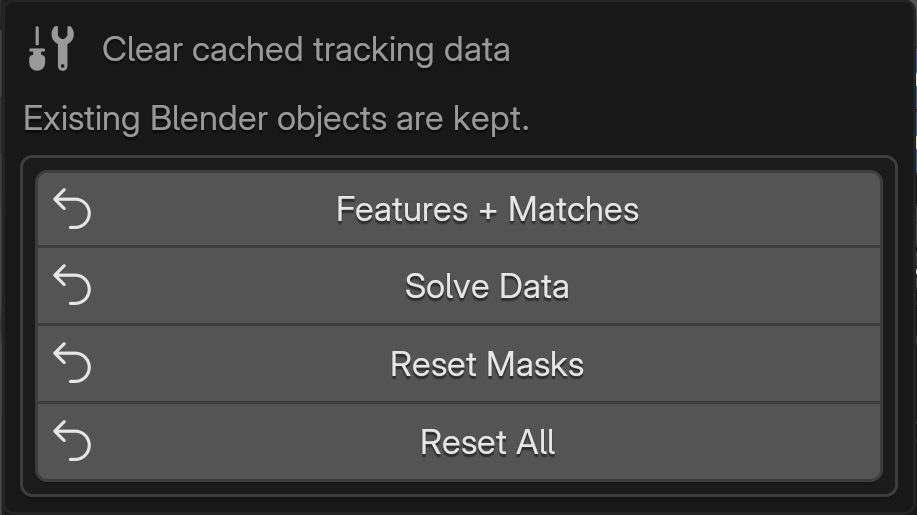 Reset options.
Use the arrow beside TRACK/Reset to choose what to clear. Blender objects are kept.
- Features + Matches: clear cached features, matches and solve files.
- Solve Data: clear solve files while keeping features.
- Reset Masks: clear masks while keeping source images and the solve.
- Reset All: clear tracking data while keeping source images and Blender objects.
Export
Choose a portable COLMAP reconstruction, distortion STMaps, or the full tracking log.
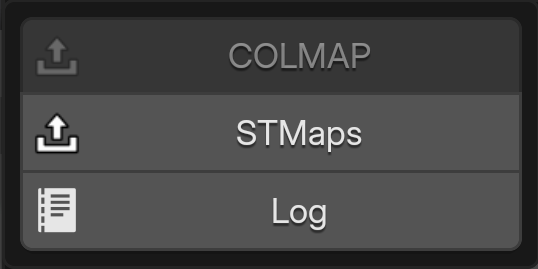 Export menu.
Tool tutorials
Ground
Watch Ground on YouTube
Scale
Watch Scale on YouTube
Clean
Watch Clean on YouTube
Smooth
Watch Smooth on YouTube
Defunk
Watch Defunk on YouTube
Align
Watch Align on YouTube
Point
Watch Point on YouTube
Object Tracking / Invert
Watch Object Tracking / Invert on YouTube
Reset
Watch Reset on YouTube
COLMAP Export
Watch COLMAP Export on YouTube
STMaps
Watch STMaps on YouTube
Logging
Watch Logging on YouTube