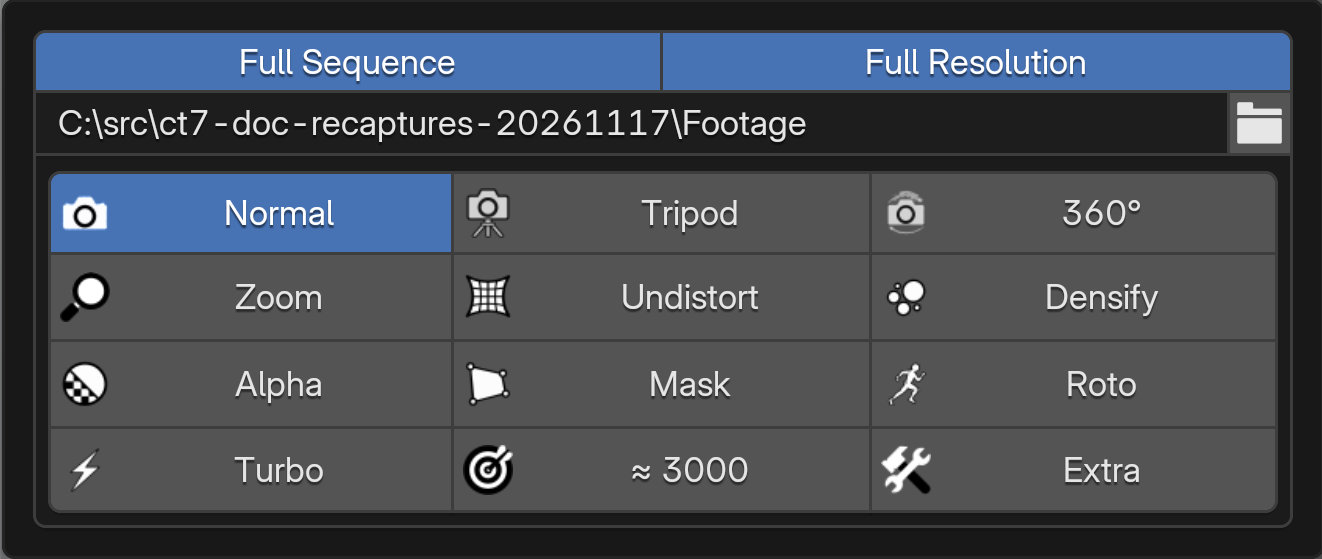
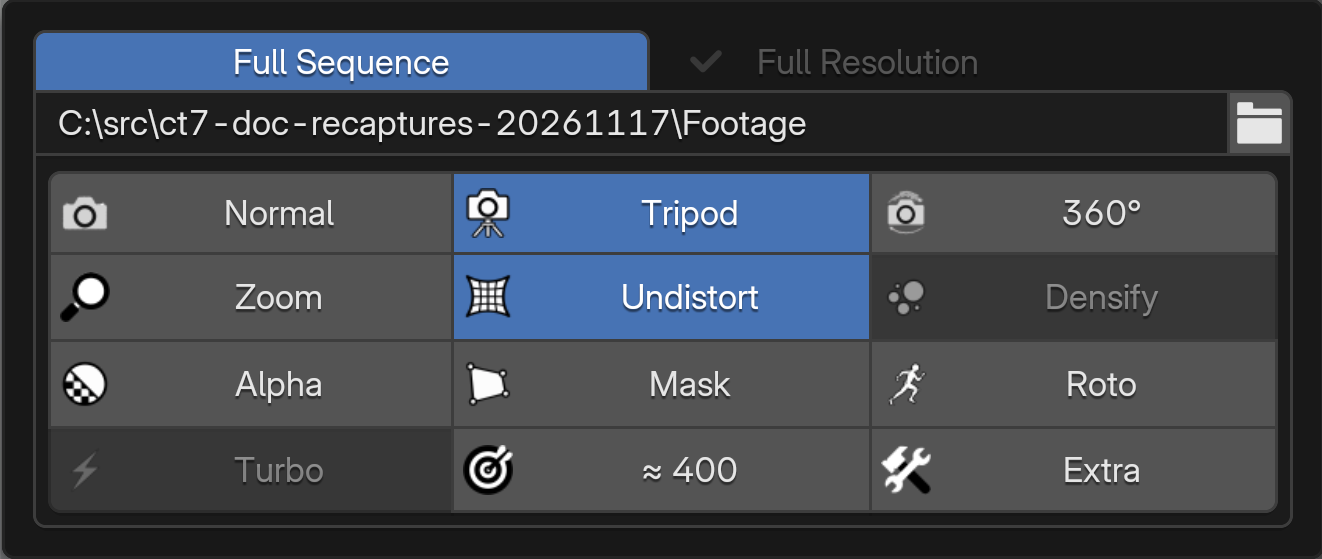
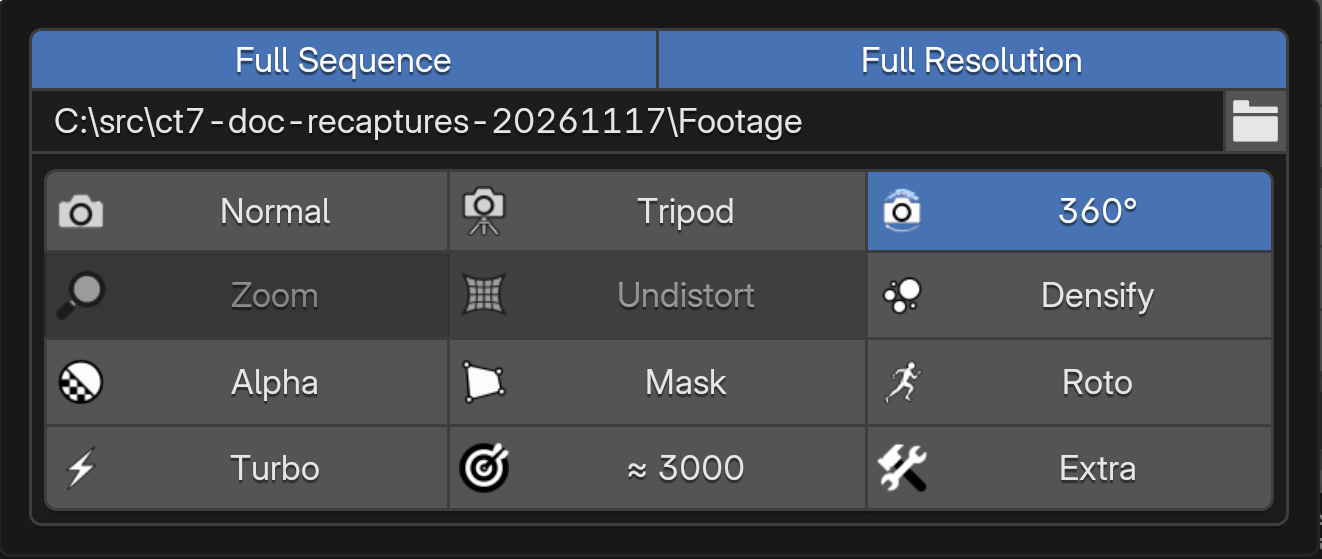
The footage path, frame range and tracking options all live in SETTINGS. Start here before running a track.
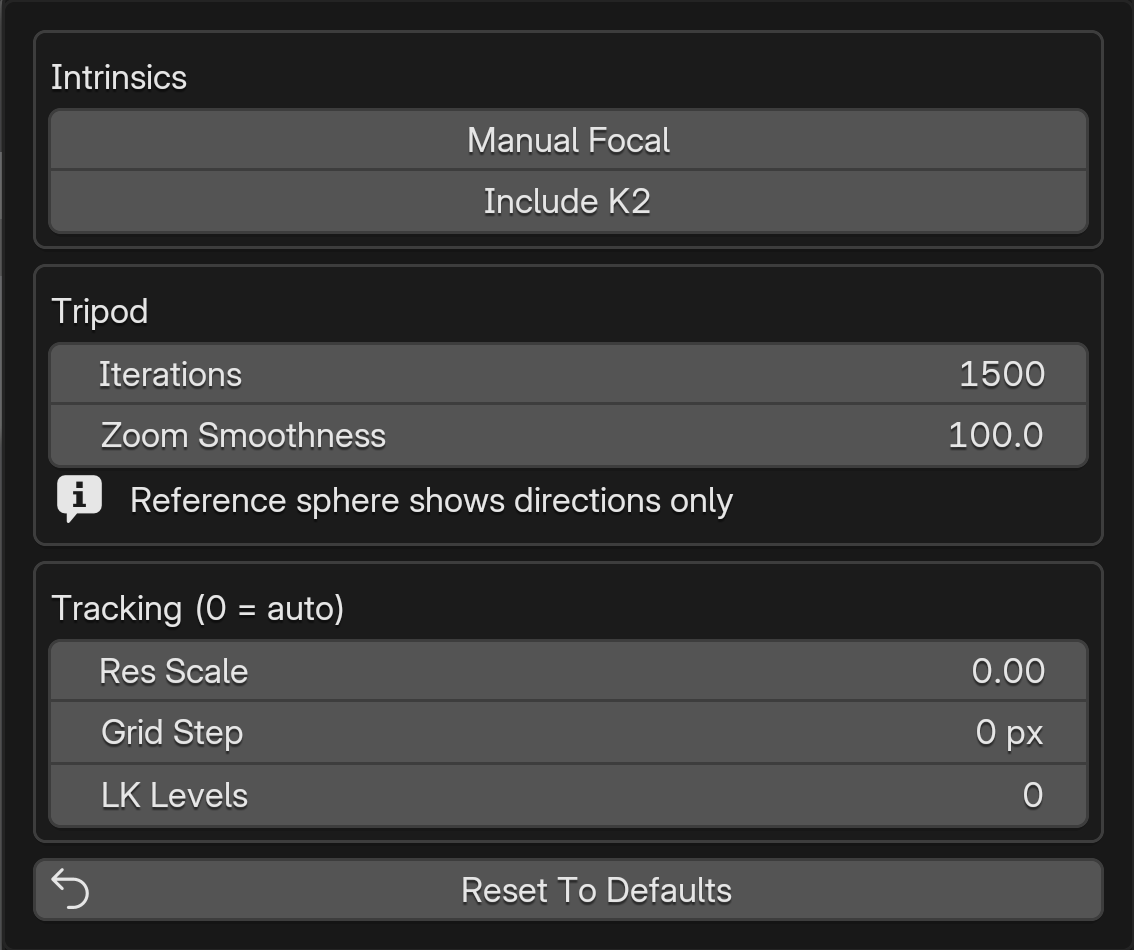
Normal settings, including the footage path.Tripod settings. Irrelevant controls are grayed out.360 settings for equirectangular footage.
Footage & Frame Range
Camera Tracker tracks image sequences. In SETTINGS, use the folder button to choose a sequence folder, one image inside that folder, or a video.
Image sequence: choose the folder containing your ordered frames. PNG, JPG, JPEG, TIF, TIFF and BMP are supported.
Video: choose a video to extract its frames into an image sequence. The progress window shows extraction, loading and playback-proxy preparation.
Source field: the chosen sequence appears at the top of SETTINGS. Path problems are shown below it.
Use a writable folder: tracking data is saved beside the images. Spaces and Unicode characters are supported. On Windows, map a network image folder to a drive letter first.
For 360°, use full equirectangular panoramas with a 2:1 aspect ratio. Every frame must have the same dimensions.
Use Full Sequence to track every frame, or set the start and end frames above the path. The scene timeline stays in sync with the selected range.
Tracking Mode & Settings
Choose your footage at the top of SETTINGS, then pick a tracking mode. The four-row, three-column settings grid adapts to the mode and available tools.
Normal: for shots with camera travel and parallax.
Tripod: for pan/tilt shots from a fixed camera position. Its reference sphere shows directions, not measured scene depth.
360°: for full 2:1 equirectangular footage. The solve creates a panoramic camera.
Zoom: solve a changing focal length. Not used for 360 footage.
Undistort: account for lens distortion; available for Normal and Tripod.
Densify: reconstruct a denser point cloud. Available for Normal and supported 360 runtimes, not Tripod.
Alpha: use the image sequence's embedded alpha for masking.
Mask: show the manual mask controls.
Roto: automatically mask the foreground actor.
Turbo: enable the platform's faster tracking options; see below.
Features: choose the target feature count per frame.
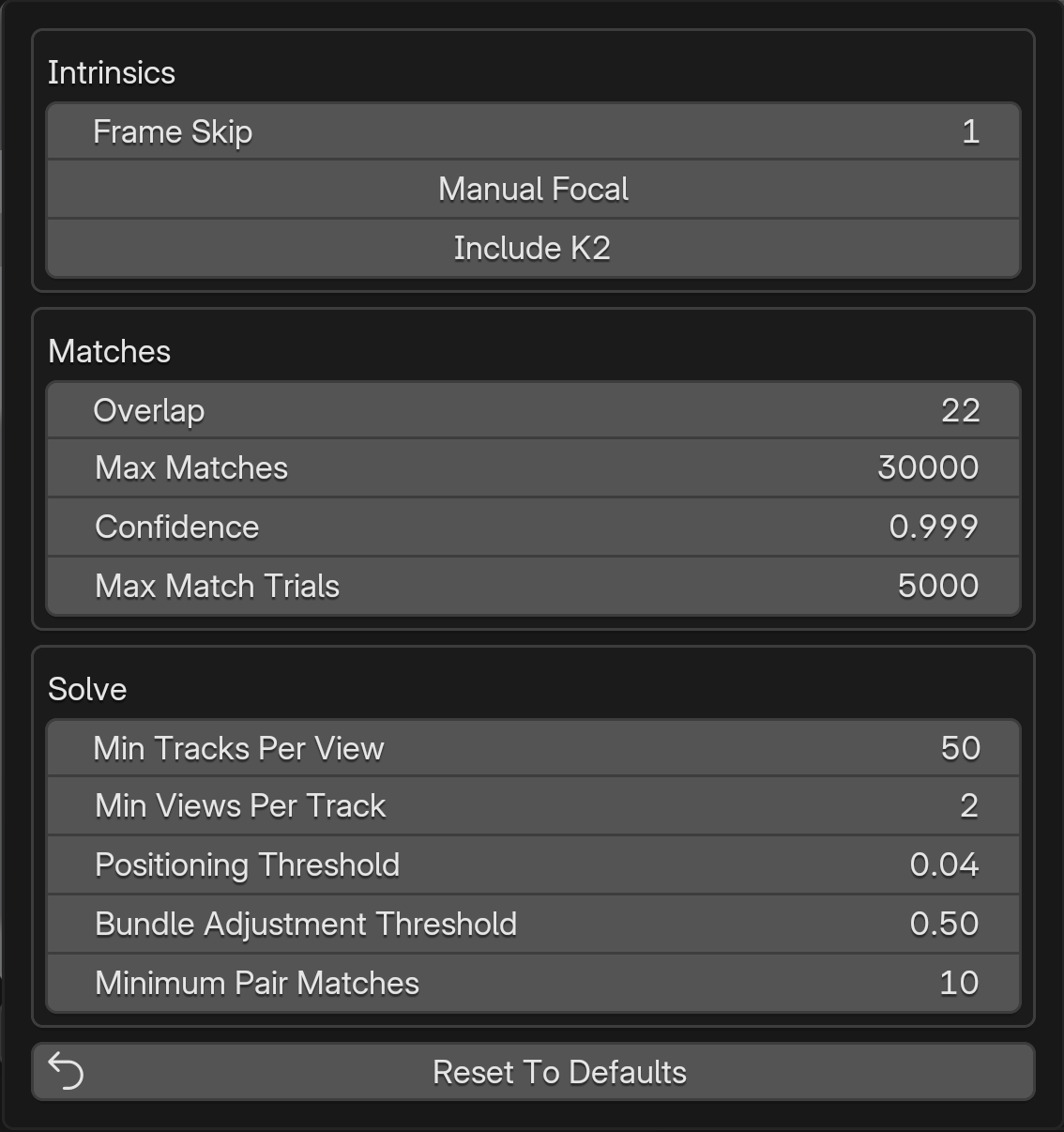
Extra: open the advanced settings relevant to this shot.
Acceleration
On Windows and Linux, Turbo requires compatible NVIDIA hardware and is available for Normal and 360 shots. It is faster but can be less reliable. The separate CUDA control enables supported NVIDIA acceleration; CUDA and Turbo are not the same setting.
On Apple Silicon Mac, Turbo speeds up supported Tripod and Densify work. It does not use CUDA.
The stronger-tracking button beside TRACK opens Accurate Mode. Its regular option uses better features; ×2 is for the hardest shots and can be slow on CPU. It is not available for Tripod.
Mask Editor
Mask controls and the active mask list.
Enable Mask, then choose Edit Mask in MASKS. Use the + beside the up/down arrows to add another mask. Each mask has controls for enabling, renaming, inversion, visibility, color, order and deletion. The top controls manage overlay visibility and overall inversion.
360 masks are edited on a temporary flat panorama without changing the solved panoramic camera. Roto is the automatic actor-mask option; manual masks let you choose other regions to exclude.